
GRBL Nothing Bars 2 vVARY
Grubel








About this app
Developer Description
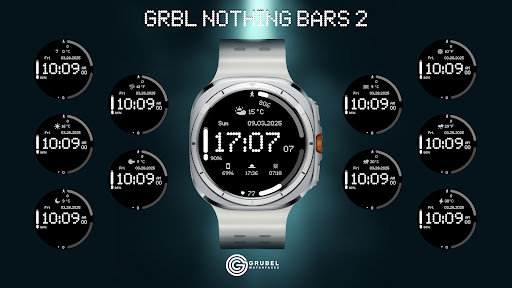
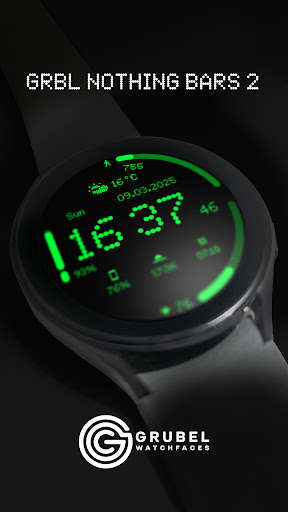
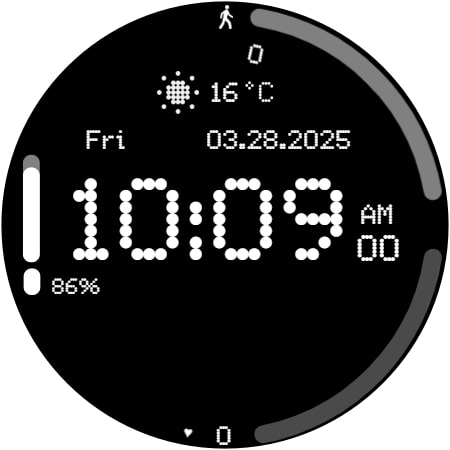
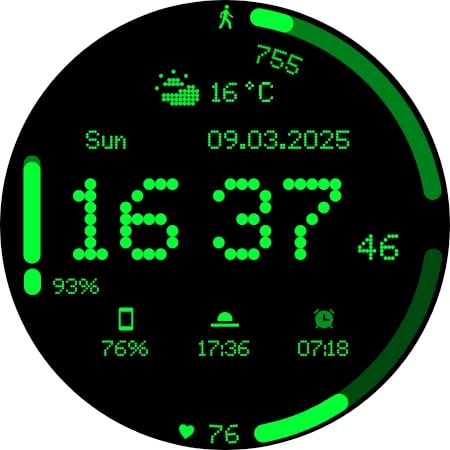
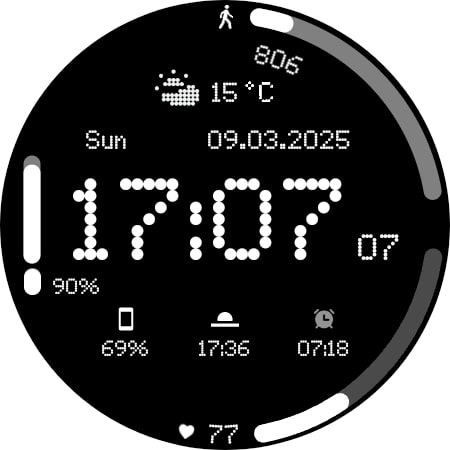
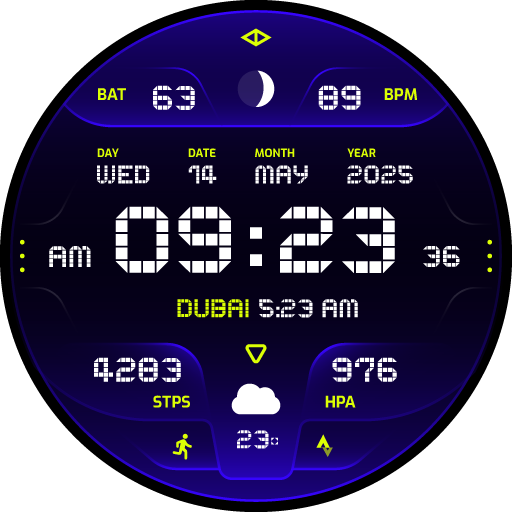
Modern watch face with status bars and Nothing-themed weather for Wear OS
- PLEASE UPDATE THE WEATHER MANUALLY ON THE WATCH
IF THAT DOESNT WORK:
- PLEASE SWITCH TO OTHER WATCH FACE THEN SWITCH BACK TO THIS ONE
Features:
Designed for Wear OS
✅ Supports AM/PM and 12H/24H format
✅ 3 custom complications
✅ 11 custom weather icons based on Nothing OS
✅ Date (format change based on user's locale)
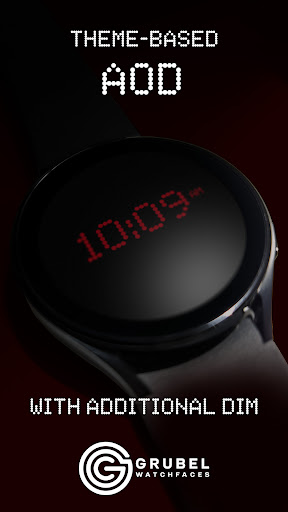
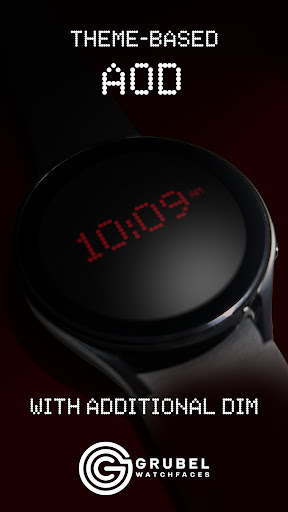
✅ AOD with theme-matching colors
✅16 themes
If you face any problem, please reach out to us at grubel.watchfaces@gmail.com. We’ll gladly provide screenshots and step-by-step instructions to help you install the watch face.
📢Watch faces do not change automatically after installation. To set it up, return to the home display, tap and hold, swipe to the end, and tap ‘+’ to add the watch face. Use the bezel to find it.
Samsung Developers offer a helpful video showing multiple ways to install a Wear OS watch face:
🎬 https://youtu.be/vMM4Q2-rqoM
📢THE COMPANION APP DOES NOT INSTALL THE WATCH FACE ON YOUR WATCH. IT ONLY OPENS THE PLAY STORE LISTING ON YOUR WATCH, WHERE YOU CAN INSTALL IT YOURSELF.
PLEASE READ INSTRUCTIONS BELOW.
There are two ways to install this watchaface to your WearOS device:
From PLAY STORE APP:
1. Use the drop-down menu and select the target
device on the PLAY STORE APP:
after a few minutes the watch face will transferred on
watch.
2- ACTIVATE WATCH FACE:
Once installed, you need to activate the watch face.
Long press screen, swipe left and tap "ADD WATCH
FACE" to activate it.
From PLAY STORE WEBSITE:
1 - Go to the watch face link through a Web Browser on
PC / Mac such as Chrome, Safari (etc.). You can search
the watch face name on Play Store.
Click on "Install on more devices" and select the target
device:
after a few minutes the watch face will transferred on
watch.
2- ACTIVATE WATCH FACE:
Once installed, you need to activate the watch face.
Long press screen, swipe left and tap "ADD WATCH
FACE" to activate it.
for API 34+
📢 Remember , if you want your watch to show phone's battery status, you should install Phone Battery Complication app
DISCLAIMER
📢 Each device offers different custom complications, and selection varies by third-party apps. Custom complications shown in store screenshots come from third-party app - Phone Battery Complication
What's New
Shortcuts added (applies only to Samsung watch users):
- tap on the human figure icon to open Samsung Health dashboard
- tap on the heart icon to open HR app
- tap on the date to open calendar app
(you may need to set up your complications again, sorry)
Version Information
- Version
- -
- Downloads
- 100+
- Updated on
- Apr 2, 2025
- Released
- Mar 9, 2025
- Requires
- Android Varies with device
Statistics
Google Play Rating History
Rating Distribution
Downloads Over Time
GRBL Nothing Bars 2 has been downloaded times. Over the past 30 days, it averaged downloads per day.
Shaded area shows 30-day prediction based on historical trends
Historical data collection started recently. More data points will be available over time.
GRBL Nothing Bars 2 users say on Google Play
 Yuri Iliaev
Wonderful watch face. Clean and minimal, just what i was looking for. Thank you!
ApkTrusted Ratings & Reviews
More from Grubel
See more apps
GRBL Bars Watchface
Paid

GRBL FloraTime Flower Flowers
Free
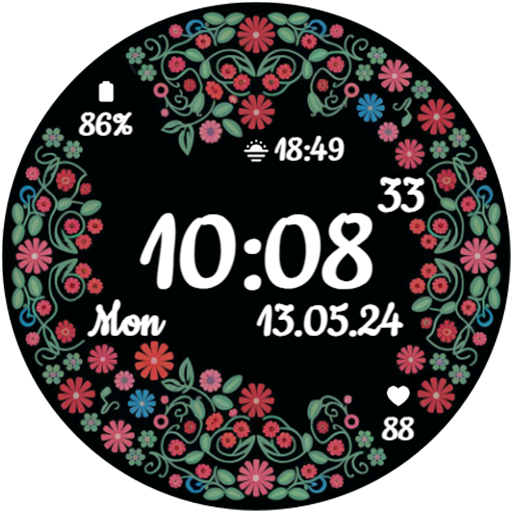
GRBL Spring Flowers Watch Face
Free

GRBL Flower Blossom
Paid

GRBL Flowers 3
Paid

GRBL Flowers 4
Paid
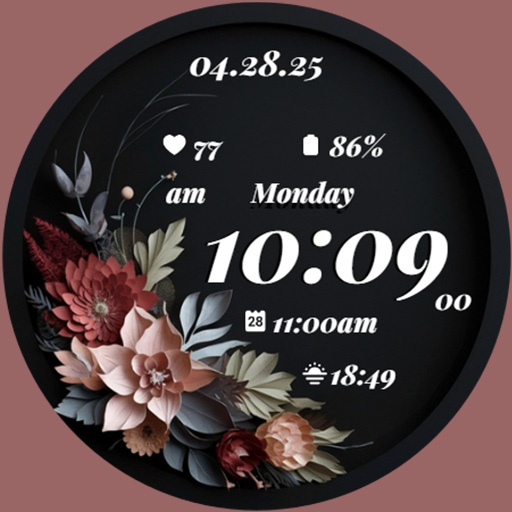
GRBL Midnight Elegance Flowers
Free

GRBL Nothing Bars Watchface
Paid

GRBL Nothing Bars V Watchface
Free

GRBL Weather Watchface
Paid

GRBL Weather 2
Paid

GRBL Nothing Weather 3
Paid

GRBL Bricks
Paid
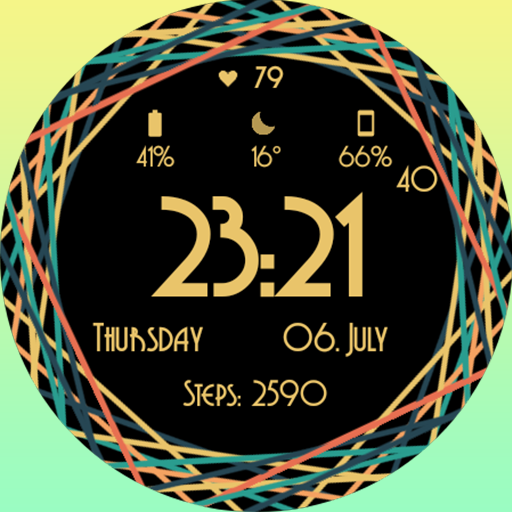
GRBL Color Swirl Watch Face
Free

GRBL Core
Paid
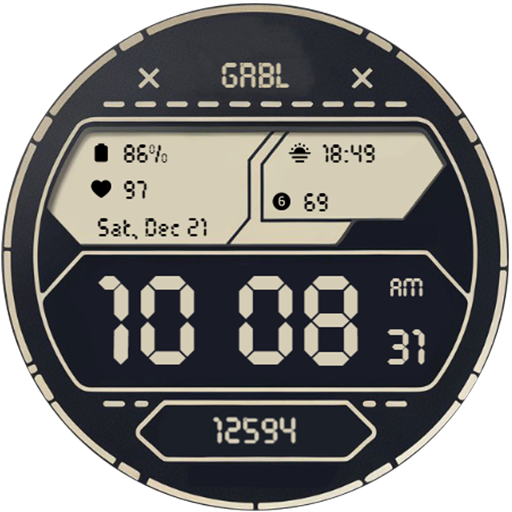
GRBL Digital Two Watch Face
Free
Similar Apps

Nothing Inspired 2A Watch Face
Free

Nothingness 2 Watch Face
Paid

Nothing Watch (2a): Watch Face
Paid
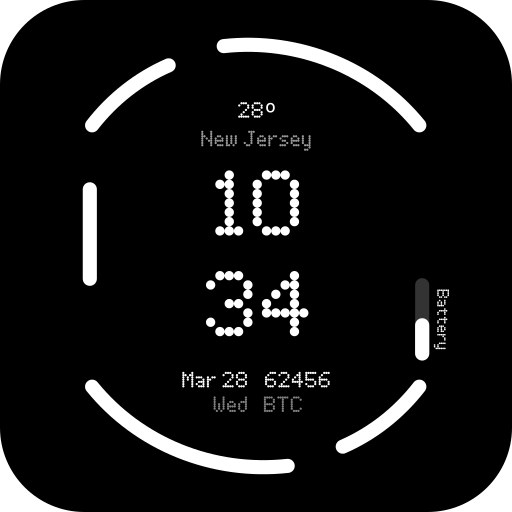
Nothing Watch (2) - Watch Face
Paid
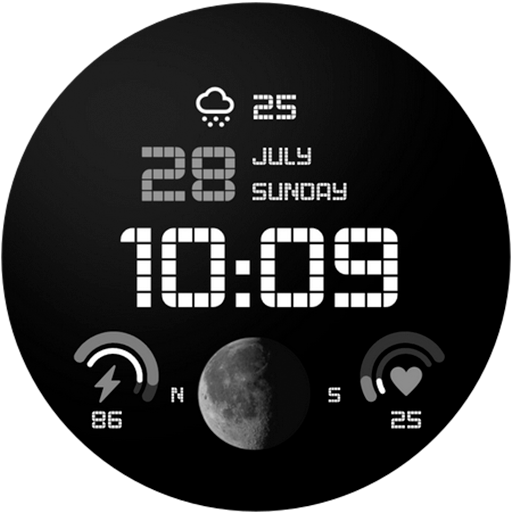
MW29 Minimal Digital Watch
Free
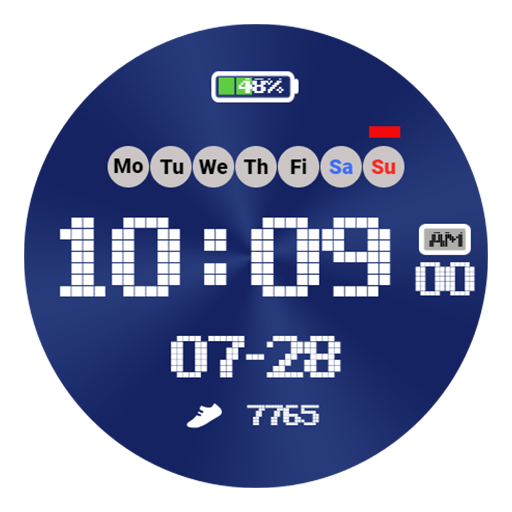
HJ Simple Digital Watch Face
Paid

MW20 Minimal Digital Watch
Free

MW19 Minimal Digital Watch
Paid

Ledglow
Paid

Nothing Watch : Minimal
Paid

MFT WF 25
Paid

Dotted
Paid
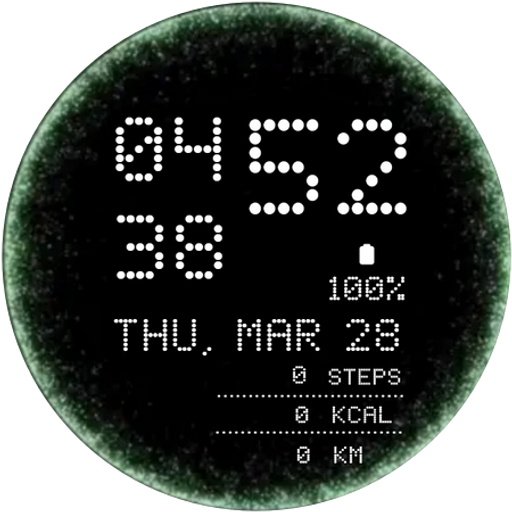
Portal Animation Watch Face
Free
Celestrix: Digital Watch Face
Paid

MW34 Minimal Digital Watch
Free

Nothing Watch Face 022
Free
Scan this QR code to download

Forwarding you to the page at Google Play market in seconds...
Open Google Play market now