
FoodStory Staff v3.10.1
Living Mobile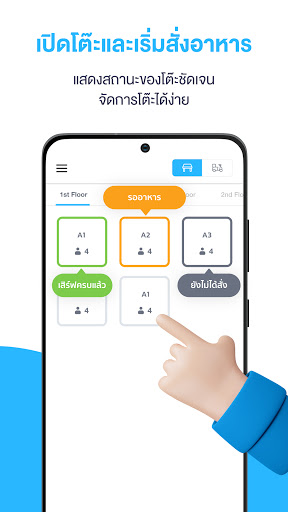







About this app
Developer Description
An application for restaurant employees to take orders with a mobile direct to FoodStory POS.
[Why do restaurant staff need to use FoodStory Staff?]
- Employees work easier and faster. No need to use a notepad or carry an iPad to take orders.
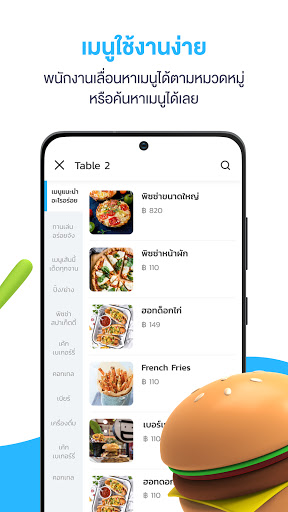
- Information on table numbers, menus, prices and promotions is always the same as in FoodStory POS.
- The status of the table color is clear. Make sure employees know how each table needs to be looked after.
- Immediately print an order notification for the kitchen. Make communication clear and no orders missed.
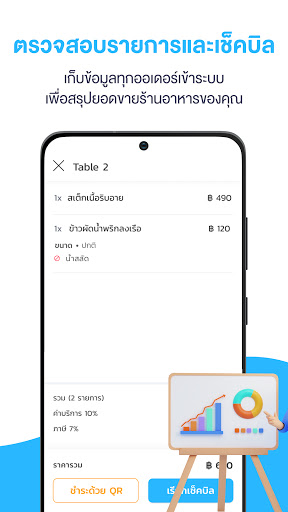
- Check transactions and check bills through your mobile phone.
- Can receive remote orders in places where there is no wifi, use internet from the SIM
- Collect data from every order into the FoodStory POS system to summarize your restaurant's sales.
[How to set up access to Foodstory POS Staff]
1. Download the Foodstory POS Staff application on your smartphone for employees or waiters in the store.
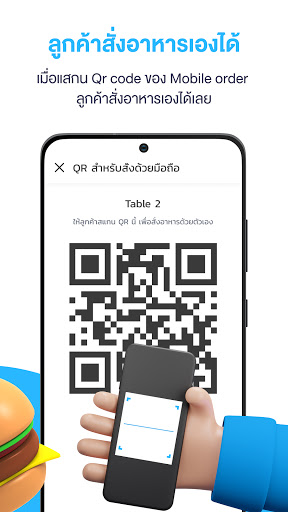
2. Open the FoodStory POS application on your iPad and select the branch you want to use, then go to Menu > Settings > Staff Mobile to receive a QR code (if you don't receive it, refresh the information on the PIN page and try again).
3. Open the FoodStory POS Staff application and scan any QR Code.
4. Enter the user's PIN within the store to start accepting orders via smartphone.
[How to receive orders through FoodStory Staff]
- Select table number to open table. You can check the list and order food.
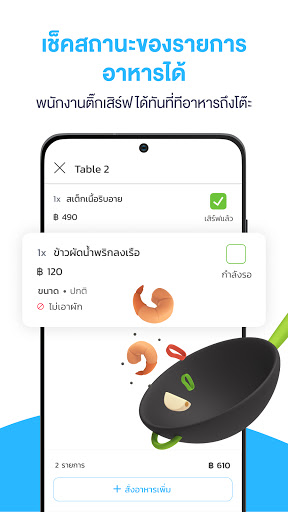
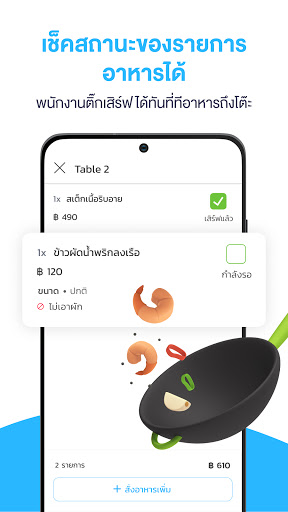
- Select a food item, then press 'View Order' to repeat the list, then press 'Send Item' to send the order to the kitchen.
- If customers want to check food items or want to call for a bill check Select the customer's table number and click on the bill image, then press 'Request Bill Check'. The bill will be printed out to the cashier immediately.
*If you are interested in using the features or encounter problems in using them. You can contact us only through the POS app or Manager by selecting the topic. "Customer Service
What's New
เพื่อเพิ่มประสิทธิภาพการทำงานให้ดี สะดวก และถูกต้องแม่นยำมากยิ่งขึ้น
Version Information
- Version
- 3.10.1
- Downloads
- 10K+
- Updated on
- Oct 28, 2025
- Released
- Dec 20, 2017
- Requires
- Android 7.1
Statistics
Google Play Rating History
Rating Distribution
Downloads Over Time
FoodStory Staff has been downloaded times. Over the past 30 days, it averaged downloads per day.
Shaded area shows 30-day prediction based on historical trends
Historical data collection started recently. More data points will be available over time.
FoodStory Staff - Google Play Rankings
Top Rankings
| Rank | Country | Category | List | Change |
|---|---|---|---|---|
| — |
Ranking History in
No ranking data available yet. Rankings are updated daily.
#43 in Top Free Food And Drink in Thailand


ApkTrusted Ratings & Reviews
More from Living Mobile
See more apps
Scan this QR code to download

Forwarding you to the page at Google Play market in seconds...
Open Google Play market now