
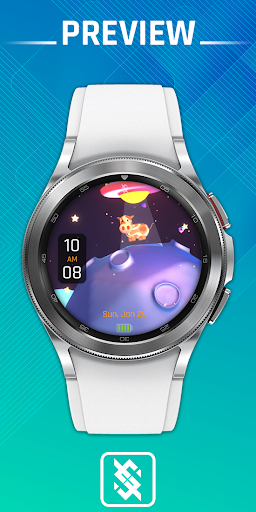
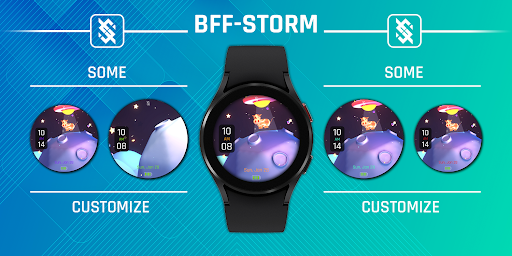
BFF29 - Animation Cow and UFOs vVARY
BFF-KING STORM






About this app
Developer Description
Animation for Wear OS by BFF-Storm (Except for the square watch face)
NOTE: The Watch faces sold by BFF-Storm on the Play Store are currently in the process of feature completion based on Samsung's new Wear Os Google / One UI operating system. So we are committed to update the watch face as soon as possible if a new function is completed. And when you have problems using it, you can contact us via gmail:
support@bffstormwatchface.com
We will support and answer questions 24/7.
NOTE: Make sure you have enabled all permissions from settings -> Applications.
NOTE: How to install watch face?
1 - Make sure the watch is connected to the electricity via bluetooth, open the watch face app page to install.
Open the "Install on more device" option (Triangle icon to the right of the free install or purchase button).
Turn off the settings on the phone just to set it on the watch. And do the installation.
After successful installation, a notification will be displayed on the watch, you can search the application on the watch.
If the app doesn't appear on the watch, open the Galaxy Wearable app on your phone, select watch faces and scroll down to the downloaded apps section and select watch faces to have them show up on the watch.
2 - If you have installed companion apps on your phone by mistake, you can delete them once the watch face has been installed.
3 - If you have sync problems between your phone, Play Store and watch, install watch face directly from your watch, or you can try from your PC web browser or visit our website to Search product.
This watch face supports all Wear OS devices with API Level 30+.
NOTE : Customize button:
-Tap to select app shortcut
-Tap to open the app shortcut
NOTE : Some features may not be available on some watches. This watch face will not apply to square face watches.
The BFF29 - Animation Cow and UFOs by BFF-Storm.
Watch Face Features: (You can see them on the picture description)
- 12/24Hr based on phone settings
- Time information: Day, month.
- Battery
Other customized information
- Optional color *10
- Optional stop animation
Always on display supports:
- Background color : Set to background by default
- Color numbers can be changed.
App shortcuts :
-4 customize app shortcuts. (You can see in the image description for where the 4 buttons are.)
You can see more details on our image description.
Customize :
1 - Touch and hold the screen
2 - Tap on customize option
Please visit us at:
Facebook: https://www.facebook.com/BFFKINGSTORM
Instagram: https://www.instagram.com/bffstormer/
Webpage: https://bffstormwatchface.com/
Thank You !!
What's New
Version Information
- Version
- -
- Downloads
- 10+
- Updated on
- Aug 26, 2024
- Released
- Jan 31, 2024
- Requires
- Android 11
Statistics
Google Play Rating History
Rating Distribution
Downloads Over Time
BFF29 - Animation Cow and UFOs has been downloaded times. Over the past 30 days, it averaged downloads per day.
Shaded area shows 30-day prediction based on historical trends
Historical data collection started recently. More data points will be available over time.
ApkTrusted Ratings & Reviews
More from BFF-KING STORM
See more apps
BFF24 - Animation Siames Fish
Paid

BFF10- Cute Little Tiger
Paid

BFF100- Blackboard Art Cactus
Paid

BFF101 - Blackboard Art Cakes
Paid

BFF102- Blackboard Art Flower
Paid

BFF103- Blackboard Art Spring
Paid
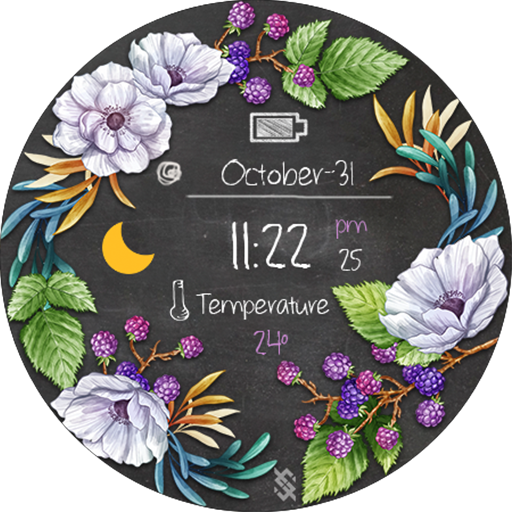
BFF104- Blackboard Art Flower
Paid

BFF106- Blackboard Art Dogs
Paid

BFF107 - Blackboard Art Flower
Paid

BFF108- Blackboard Art Autumn
Paid

BFF109- Blackboard Art Cactus
Paid

BFF10-Black Analog Information
Paid

BFF10-Gold Analog Pattern Gear
Paid

BFF10- Technology Body HUD Pre
Paid

BFF10-Animation Colorful Smoke
Paid

BFF10- Blackboard Version 10
Paid
Similar Apps

EXD123: Winter Hybrid Face
Paid
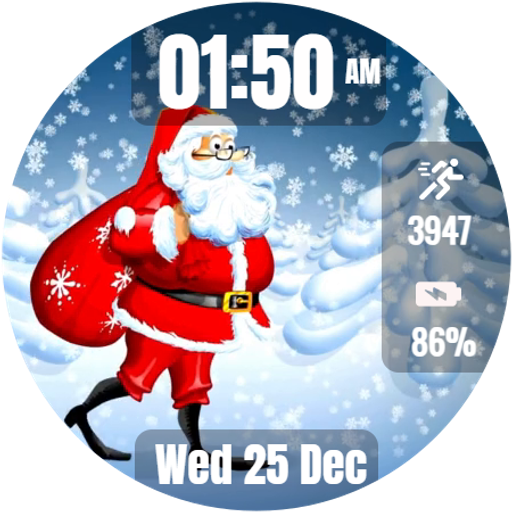
Christmas Walk Watch Face
Free

Beautiful StarrySky For WearOS
Free
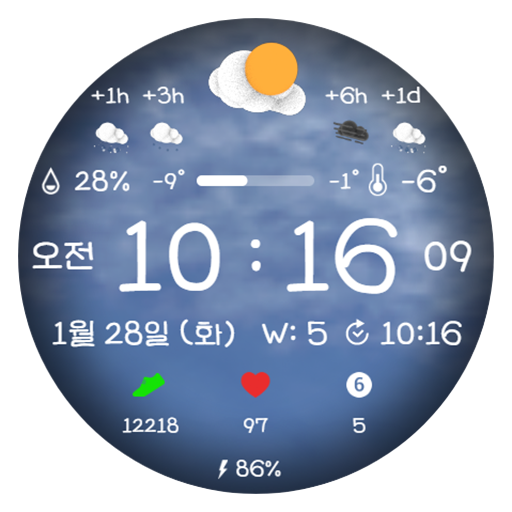
AWD Weather C1 3D Gif
Paid
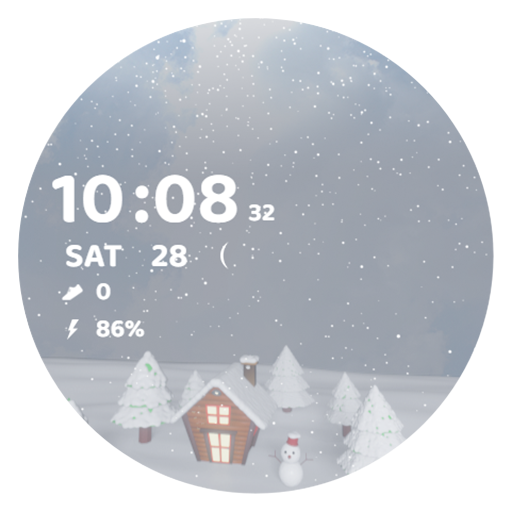
AI winter B
Paid
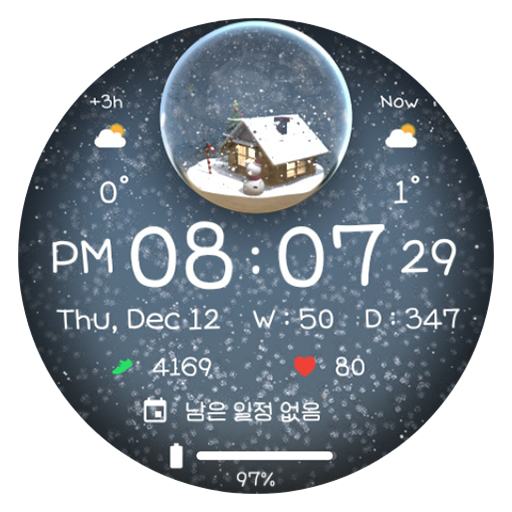
AWD Winter Ball
Paid
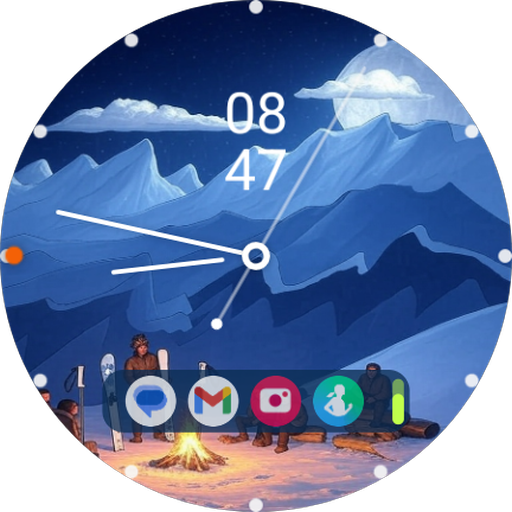
Minimal Winter Watch Face
Paid

Animated Winter Scenes
Paid

EXD166: Digital Summer Face
Paid

Stellar Duo watch face
Paid

Swirl 1:Watchface for Wear OS
Free

Hallow's Eve for Wear OS
Paid

ZKin Watch Mountain Moon Mist
Paid

ZKin Watch Face Vientiane
Paid
SamWatch T Gom Travel
Paid

ZKin Watch Moon Roaming
Paid
Scan this QR code to download

Forwarding you to the page at Google Play market in seconds...
Open Google Play market now