
Explorer Pro Watch Face vVARY
GPhoenix Studio

About this app
Developer Description
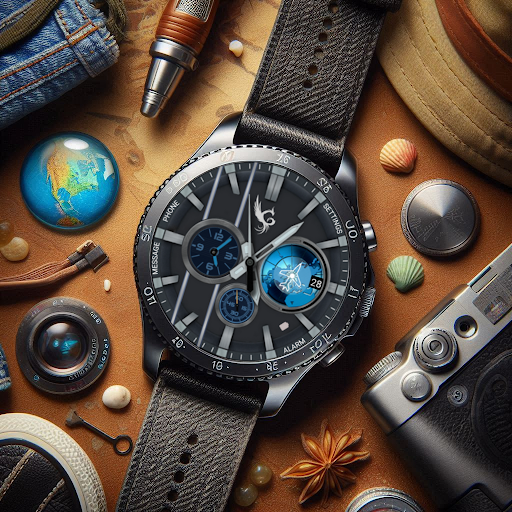
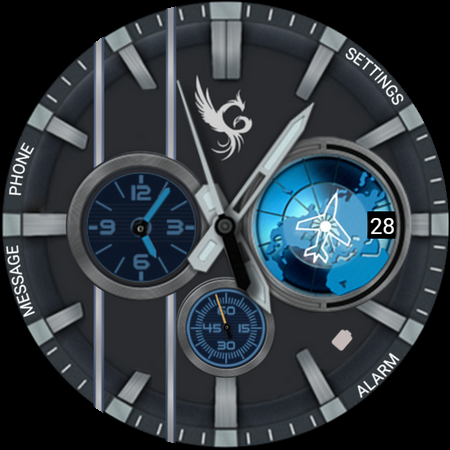
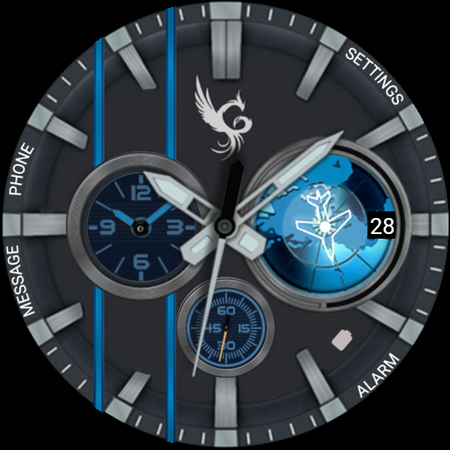
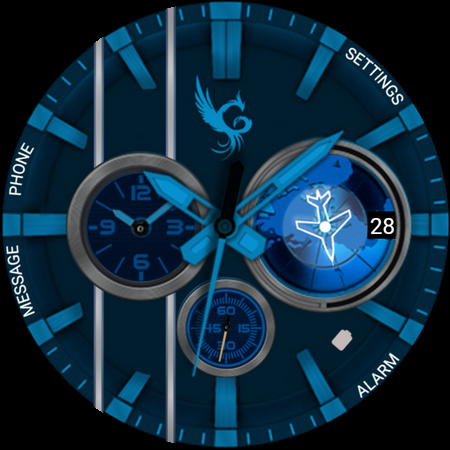
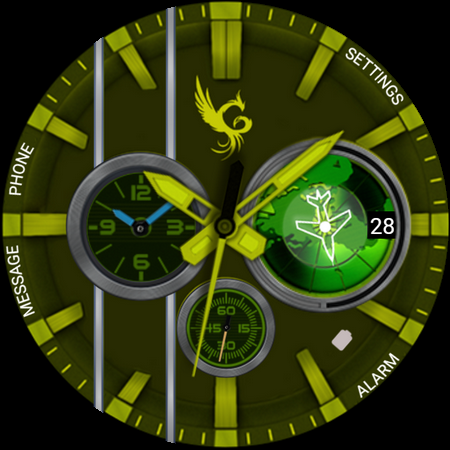
A classic Wear OS watch face with multiple color themes.
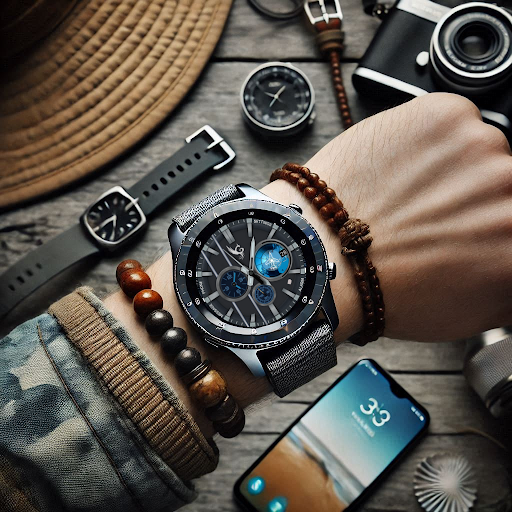
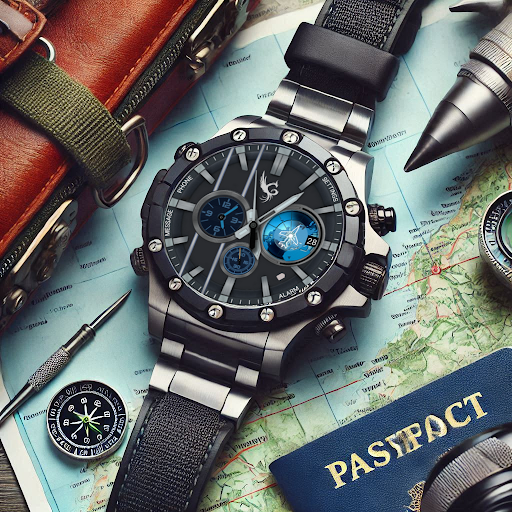
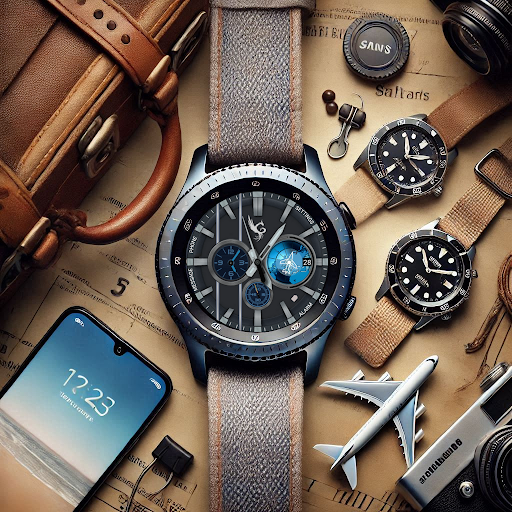
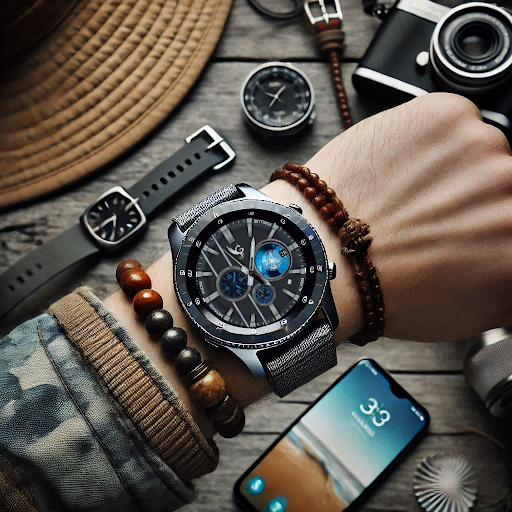
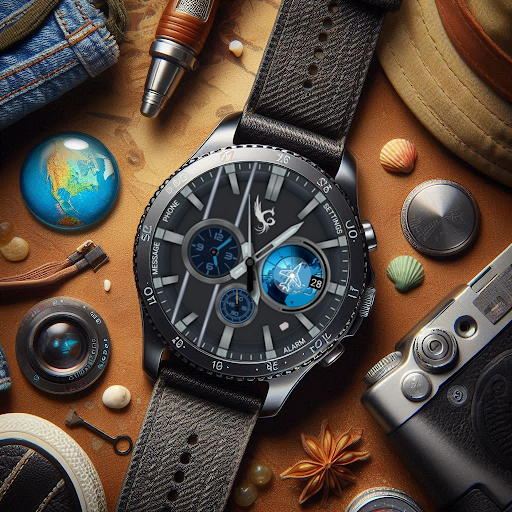
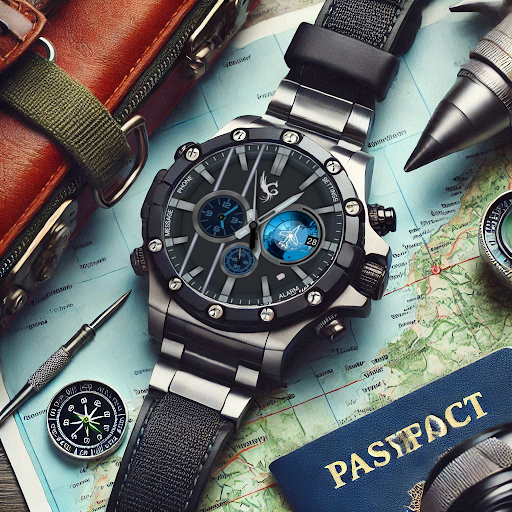
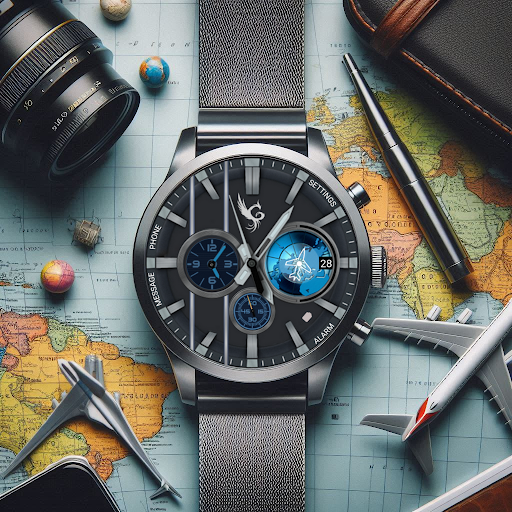
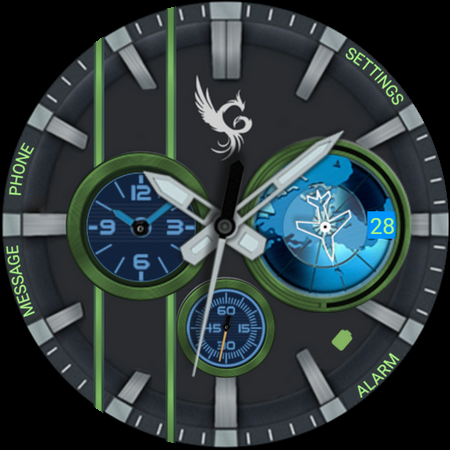
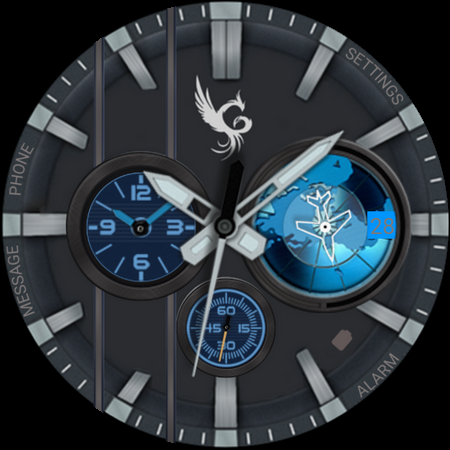
Unleash your inner adventurer with the Explorer Pro Watch Face, designed for those who love exploring new horizons. This Wear OS watch face blends functionality and style, offering a rugged yet sleek design perfect for outdoor enthusiasts and urban explorers alike.
Features:
-Classic Display: Analog classic watch design
-Battery Shortcut: Access battery percentage through battery shortcut icon.
-Tap to Customize: Personalize your look with multiple color themes.
-Shortcut Access: Quick access to settings, alarm, messages, and schedule.
-Always-On Display (AOD): Optimized for day and night use.
Whether you're navigating the wilderness or the city streets, Explorer Pro Watch Face is your perfect companion. Customize your watch face to match your vibe and make every moment an adventure.
Download now and start exploring!
📍Installation Guide for Wear OS Watch Faces
Follow these step-by-step instructions to install a Wear OS watch face on your smartwatch, either from your smartphone or directly from the watch itself.
📍Installing from Your Phone
Step 1: Open the Play Store on Your Phone
Ensure your phone is connected to the same Google account as your smartwatch.
Open the Google Play Store app on your phone.
Step 2: Search for the Watch Face
Use the search bar to find the desired Wear OS watch face by name.
For example, search for "Explorer Pro Watch Face" if that’s the watch face you want.
Step 3: Install the Watch Face
Tap on the watch face from the search results.
Click Install. The Play Store will automatically sync the watch face with your connected smartwatch.
Step 4: Apply the Watch Face
Once installed, open the Wear OS by Google app on your phone.
Navigate to Watch Faces and select the newly installed watch face.
Tap Set Watch Face to apply it.
📍Installing Directly from Your Smartwatch
Step 1: Open the Play Store on Your Watch
Wake your smartwatch and open the Google Play Store app.
Ensure your watch is connected to Wi-Fi or paired with your phone.
Step 2: Search for the Watch Face
Tap on the search icon or use voice input to search for the desired watch face.
For example, say or type "Explorer Pro Watch Face".
Step 3: Install the Watch Face
Select the watch face from the search results.
Tap Install and wait for the installation to complete.
Step 4: Apply the Watch Face
Press and hold the current watch face on your watch’s home screen.
Swipe through the available watch faces until you find the newly installed one.
Tap on the watch face to set it as your default.
Troubleshooting Tips
Ensure Your Watch and Phone Are Synced: Both devices must be paired and logged into the same Google account.
Check for Updates: Update the Google Play Store and Wear OS by Google apps on both your phone and smartwatch.
Restart Your Devices: If the watch face doesn’t appear after installation, restart your smartwatch and phone.
Verify Compatibility: Confirm that the watch face is compatible with your smartwatch model and software version.
Now you’re ready to personalize your smartwatch with your favorite Wear OS watch faces! Enjoy your new look.
Version Information
- Version
- -
- Downloads
- 1K+
- Updated on
- Oct 7, 2025
- Released
- Jan 16, 2025
- Requires
- Android Varies with device
Statistics
Google Play Rating History
Rating Distribution
Downloads Over Time
Explorer Pro Watch Face has been downloaded times. Over the past 30 days, it averaged downloads per day.
Shaded area shows 30-day prediction based on historical trends
Historical data collection started recently. More data points will be available over time.
Explorer Pro Watch Face users say on Google Play
 Patrick A Corrente
Great looking watch face. I feel like a world traveler without leaving my desk.
 Veera Brahmaji Vadlapudi
Good but little clumsy
ApkTrusted Ratings & Reviews
More from GPhoenix Studio
See more apps
Daily Bible Verse Wear App
Free

Chrome Atlas Watch Face
Free

Infinity Elegance Watch Face
Paid

Celestial Wear OS Watch Face
Paid

Minimalist Accent Watch Face
Paid

Chrono Prestige Watch Face
Paid

ChronoSphere Wear OS
Paid

Aurum Mechanica Watch Face
Paid

Eterna Luxe Wear OS Watch Face
Paid

ChronoSpire Wear OS Watch Face
Paid

Executive Timepiece Watch Face
Paid

Alderidge Watch Face
Paid

Ivory Majesty Watch Face
Paid

Jewel Watch Face
Paid

24 Karat Watch Face
Free

La Carrera Watch Face
Paid
Similar Apps
W-Design WOS104 - Animated
Paid

Horizon Watchface
Paid
DF083
Free
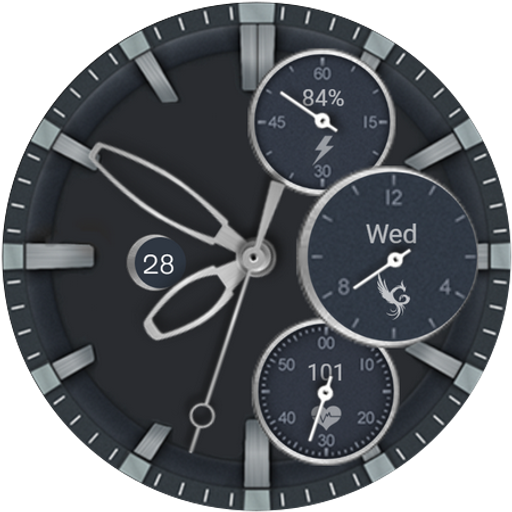
MetroClass Wear OS Watch Face
Paid
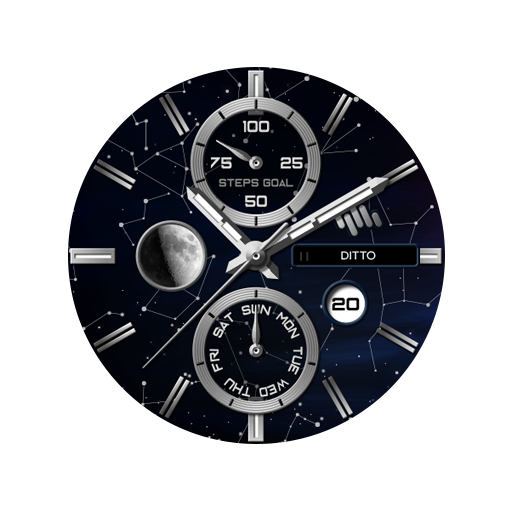
SamWatch Starstory 3
Paid

SamWatch Analog N 2025
Paid

Carbochrome Watch face
Paid

Modern Hybrid Watch Face
Paid
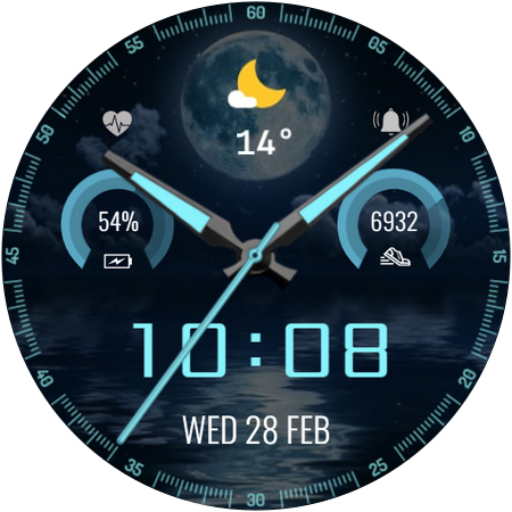
CNRwatch014
Paid

Analog Sport 8
Paid
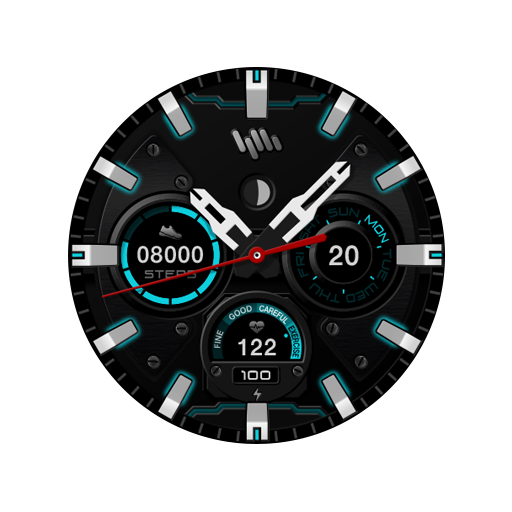
SamWatch AD Apophis 2021
Paid

W-Design WOS030 - Watch Face
Paid
Grandmaster Watch Face V6
Paid

Mechanical Zunba ZKin Watch
Paid
WF42
Paid
![[KNA002] SHINE icon](https://play-lh.googleusercontent.com/HYtcBfdbRJFqpzqyj7byfnIkcf0BHii-bT4ZIZTlc5F6hT6oT_0fEkdtMahkuUOecQ)
[KNA002] SHINE
Paid
Scan this QR code to download

Forwarding you to the page at Google Play market in seconds...
Open Google Play market now