
Back in USSR (B) vVARY
Eugeniy Radzivill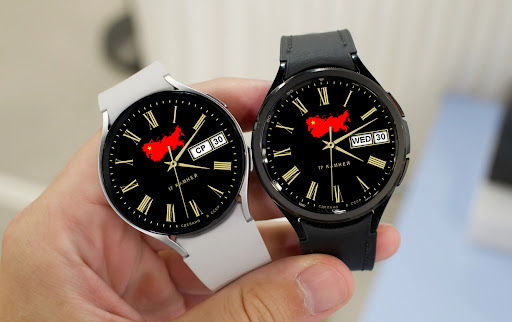










About this app
Developer Description
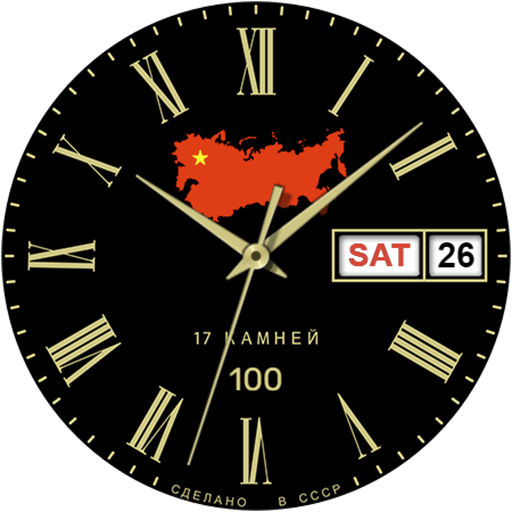
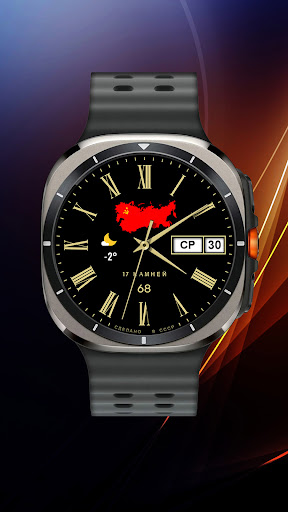
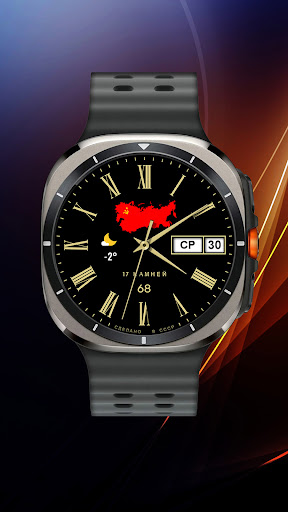
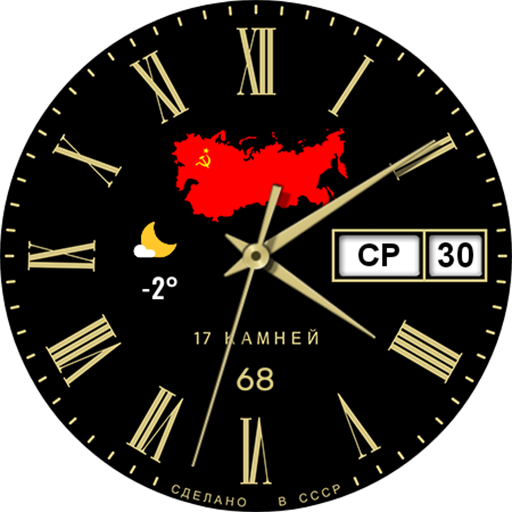
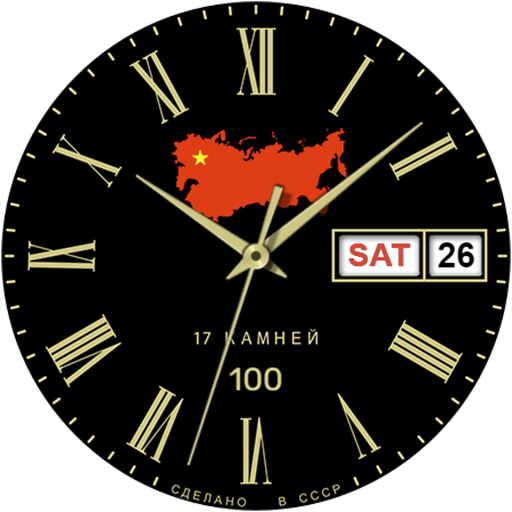
"Back in USSR" watch face for Wear OS smartwatches
- Multilingual display of date and day of the week. The watch face language is synchronized with the one installed on your smartphone. If the font does not support your language, the watch face will automatically display the day of the week in English.
- The second hand imitates the work of classic mechanical watches with a slight twitching at a frequency of 5 Hz
- At the bottom of the dial, under the inscription "17 stones", the numbers indicate the battery charge. I deliberately did not add percentages or a battery icon so that the watch had a classic look.
- You can change the appearance of the watch face by turning on or off the battery charge display (then the watch face becomes similar to a mechanical watch) or by changing the icons on a conditional map of the USSR
- In the watch face menu settings, you can configure 3 tap zones to call up applications installed on your watch and one information zone to display data from any application.
Please note that not all watch applications can be optimized to work with the information zone and may not display data or display it incorrectly. If you want to remove the display of the information zone, then simply set it to "None" in the watch face menu (due to translation peculiarities in some countries, this menu item may be called differently)
Also, I can guarantee the setup and operation of tap zones only on watches from Samsung. If you have a watch from another manufacturer, the tap zones may not work correctly. Please take this into account when purchasing a watch face.
I made an original AOD mode for this watch face. To display it, you need to activate it in the menu of your watch. Please note that in AOD mode, the picture on the watch is redrawn once per minute. Therefore, the second hand is not displayed in this mode.
For comments and suggestions, please write to e-mail: eradzivill@mail.ru
Join us on social networks
https://vk.com/eradzivill
https://radzivill.com
https://t.me/eradzivill
https://www.facebook.com/groups/radzivill
Sincerely,
Eugeniy Radzivill
Version Information
- Version
- -
- Downloads
- 100+
- Updated on
- -
- Released
- Oct 29, 2024
- Requires
- Android Varies with device
Statistics
Google Play Rating History
Rating Distribution
Downloads Over Time
Back in USSR (B) has been downloaded times. Over the past 30 days, it averaged downloads per day.
Shaded area shows 30-day prediction based on historical trends
Historical data collection started recently. More data points will be available over time.
ApkTrusted Ratings & Reviews
More from Eugeniy Radzivill
See more apps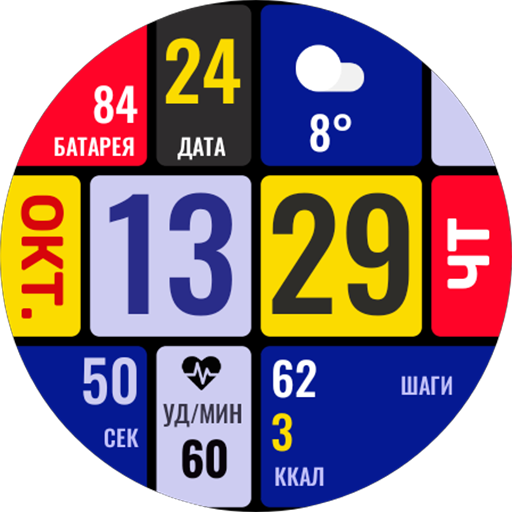
Умные плитки
Free
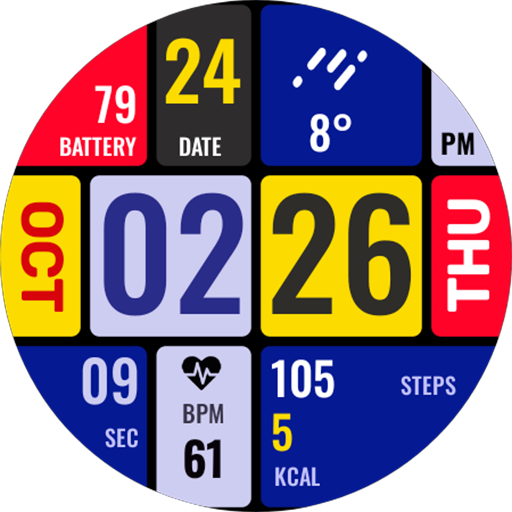
Smart Tiles (English version)
Paid

Living Abstraction
Paid
ACHS-1
Free

Analog Sport
Paid

Andro Watch
Free
Mr. Battery
Paid
Nice Classic
Paid

Boxer Watch
Free
Da Vinci's Cat
Paid

Classic with battery
Paid

Cuckoo Clock
Free

Funny watch
Free

Diamonds Watch
Paid

Space Dog
Paid

DOTS Light
Free
Similar Apps

Flame Classic Watch Face
Paid
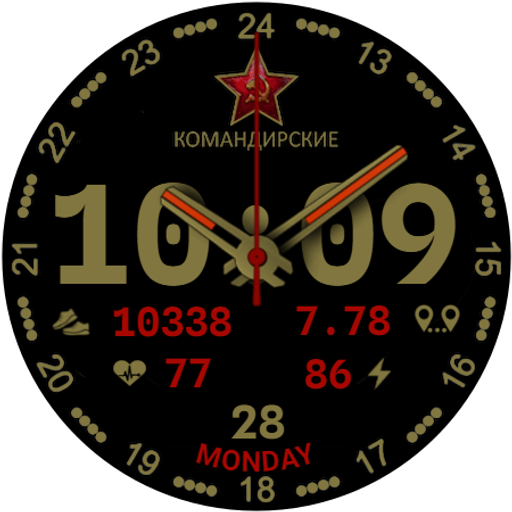
KOMANDER 1
Paid

Orange Classic Watch Face
Paid
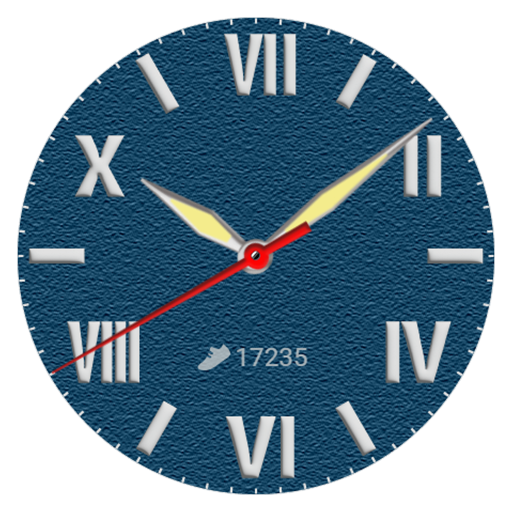
HJ 13CSS WatchFace
Paid
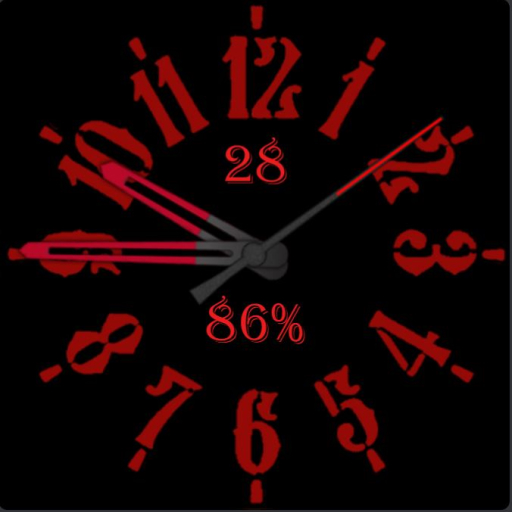
RedWatch
Free

JW177 jwstudio
Paid

N-SPORT1 Tôi Yêu Việt Nam
Free

SamWatch Classic Autumn 2022
Paid
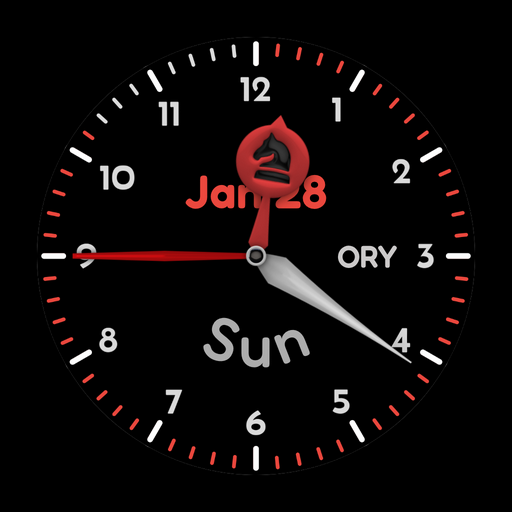
AIR B Watchface for Wear OS
Free

Voron PATRIOT Watch Face
Paid
W-Design WOS128 - Watch Face
Free

GRU SMERSH
Free
NKVD SMERSH
Free

HJSimple Watch Face
Free

Roman Noir Watch Face
Free
샘워치 Classic Fall 2022
Paid
Scan this QR code to download

Forwarding you to the page at Google Play market in seconds...
Open Google Play market now