Target Scanner ISSF Pistol vVARY
AC APPS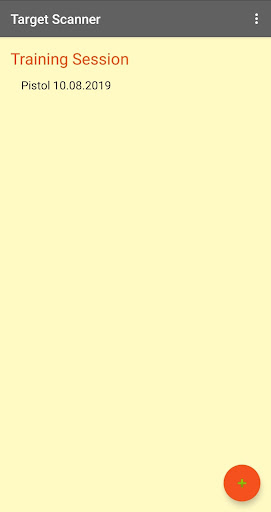




About this app
Developer Description
Scan your target and evaluate the results within seconds.
INSTRUCTION
Add a new training session:
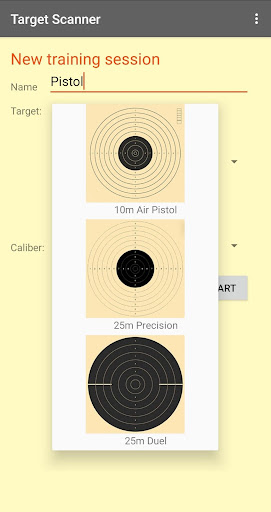
Click on the plus button to add a new training session. Enter the name, select the target and the caliber. Then click “start”.
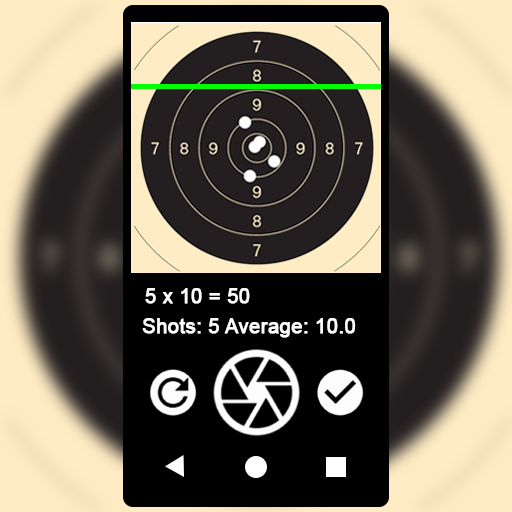
Now put a white sheet of paper on the table and place the target over it. Make sure that the lighting is even and there are no shadows on the target. Frame the target so that it fills the screen. Then click on the shutter button to take a picture. After this click on the reset button to take a picture again or on the confirm button to proceed with the shot recognition.
Add a shot:
To add a shot, click on the “add” button, tap with a finger on the spot where you want to put it and click OK to confirm or cancel. You can only place one shot at a time, tapping on the screen moves the shot.
Remove a shot:
To remove a shot, click on the X button and select the shots you want to remove. Tap on the circle to select it and by tapping on it again you deselect it. Only selected shots will be removed after clicking on the OK button. If some shots are very close to each other, try to remove some first and then the others later. When ready, click on the “save” button.
Add a target to a training session:
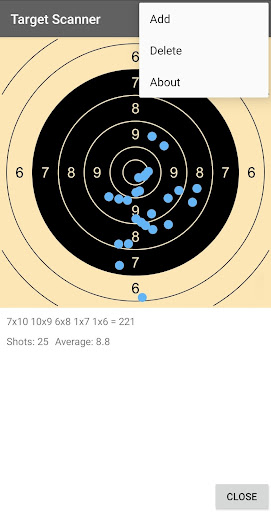
To add a target to a training session, simply select the desired training session by tapping on it. Then click on the three vertical dots in the upper right corner and select “add”. Now proceed the same way as you created a new training session (see above).
Delete a target from a training session:
To delete a target from a training session, select the desired training session from the list by tapping on it. Now navigate with the “prev” and “next” buttons to the desired target. Then click on the three vertical dots in the upper right corner and select “delete”. You need to confirm your action. If there are no targets in the training session, the whole session will be deleted.
View results:
To view the results, select a training session from the list by tapping on it. Now you can scroll through the targets with “prev” and “next” buttons to watch your results.
Version Information
- Version
- -
- Downloads
- 100+
- Updated on
- -
- Released
- Aug 10, 2019
- Requires
- Android Varies with device
Statistics
Google Play Rating History
Rating Distribution
Downloads Over Time
Target Scanner ISSF Pistol has been downloaded times. Over the past 30 days, it averaged downloads per day.
Shaded area shows 30-day prediction based on historical trends
Historical data collection started recently. More data points will be available over time.
Target Scanner ISSF Pistol users say on Google Play
 A Google user
Works perfectly! Recognizes the target really well, you just need to use it where is enough light. I always use this app to record my results! AMAZING! 5 stars!
 Michele Angoscini
9 euro and It has only 3 model of target, only for pistol..useless
A Google user
This is terrible, it marks my 7s and 9s and is not accurate at all
ApkTrusted Ratings & Reviews
More from AC APPS
See more apps


Scan this QR code to download

Forwarding you to the page at Google Play market in seconds...
Open Google Play market now