Flashlight vVARY
Douglas Silva :: Dect



About this app
Developer Description
Use your smartwatch as a flashlight
- Set the color;
- Set the circle size;
- Set the brightness;
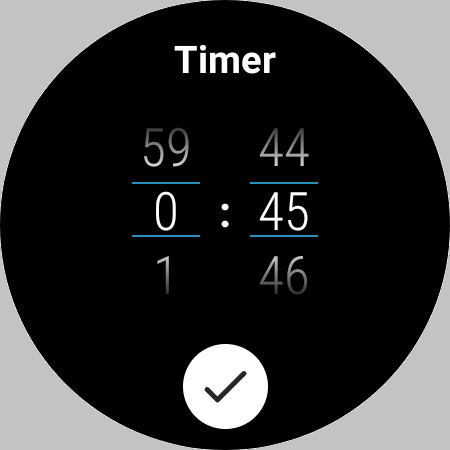
- Set a timer (to turn the flashlight off);
- Show the time;
- Blink in SOS;
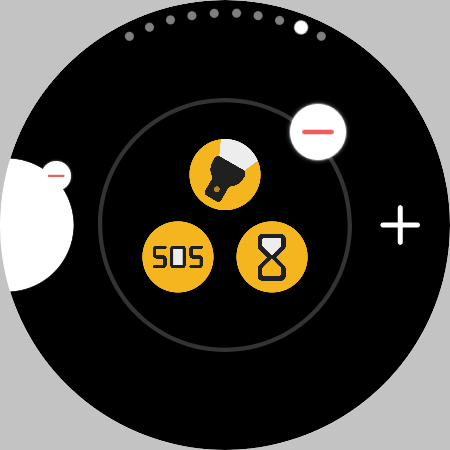
- Three tiles;
- Three complications.
Warnings and Alerts:
- This application is for Wear OS;
- The phone app only function is to help you to install the watch app;
- The app needs permission to change the watch settings in order to set the brightness;
- The basic tile is white at full brightness;
- The advanced tile imitates the app basic flashlight;
- Long use may cause problems to the screen!
- Long use may reduce the battery level!
Instructions:
= FIRST TIME RUNNING:
- Open the app;
- Grant the permission;
- Relaunch the app.
= SET THE SIZE:
- Open the app;
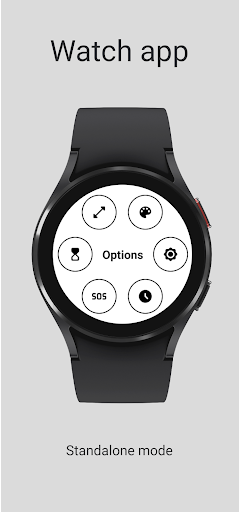
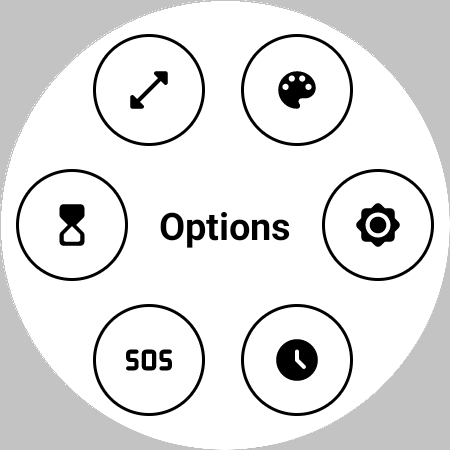
- Tap the screen to show the options' menu;
- Click on the size icon;
- Use the slide to change the size.
= SET THE COLOR:
- Open the app;
- Tap the screen to show the options' menu;
- Click on the color icon;
- Use the slides to select the desired color.
= SET THE BRIGHTNESS:
- Open the app;
- Tap the screen to show the options' menu;
- Click on the brightness icon;
- Use the slide to change the brightness.
= SET THE TIMER:
- Open the app;
- Tap the screen to show the options' menu;
- Click on the timer icon;
- Set the minutes and seconds;
- Click on the confirm button.
= STOP THE TIMER:
- Tap the screen*
* After the timer started.
= BLINK IN SOS:
- Open the app;
- Tap the screen to show the options' menu;
- Click on the SOS icon.
= STOP BLINKING IN SOS:
- Tap the screen*
* While blinking.
= SHOW THE TIME:
- Open the app;
- Tap the screen to show the options' menu;
- Click on the clock icon*.
* First tap: Show the time in the top of the screen;
* Second tap: Show the time in the center of the screen;
* Thrid tap: Hide the time
= RESET THE FLASHLIGHT SETTINGS:
- Tap the screen to show the options' menu;
- Tap and hold the "Option" text;
- Confirm.
= TO CLOSE A SCREEN (color, brightness, sos, ...)
- Tap the screen name OR press the back button.
Tested devices:
- GW5.
What's New
- Bug fix.
Version Information
- Version
- -
- Downloads
- 50K+
- Updated on
- Aug 7, 2025
- Released
- Jan 18, 2023
- Requires
- Android 9
Statistics
Google Play Rating History
Rating Distribution
Downloads Over Time
Flashlight has been downloaded times. Over the past 30 days, it averaged downloads per day.
Shaded area shows 30-day prediction based on historical trends
Historical data collection started recently. More data points will be available over time.
Flashlight users say on Google Play
 Vi Mi
Vi Mi
Absolutely Fantastic Smartwatch App!! Exactly what I was looking for, but BETTER! Uses Bezel rotation for brightness, has an app tile set to exactly the colour and brightness you set or simple bright white or quick launches. You can scroll right to it and boom, your perfect torch. Unlike the built in Samsung flashlight which has No Custom Options. This app has it all… Well done Dev 👍🏼
 Jason Waldo
Works with custom key double press! Thats what I was after. Thanks for making a great light! Would be 5 star if two updates are made... 1. bezel rotate to change brightness or some other easy gesture and 2. For me on a Galaxy 4 classic when I'm in the brightness setting (or size) once I set the level I can't use the Swipe gesture to back out of that menu. I have to use the back button but I have my back button set to recent apps. So I have to change the custom key to get out. But#1 solves it.
 Danilo
Looks promissing but asks to change settings and leaves display brightness at 100% effectively blinding us at low light conditions.
 Kumari Palak
Good app
 Susan Kleinwechter
Installed on Galaxy watch 6, would not work. Gave screen titled "advanced" with toggle "appear on top" which was unselectable and toggle "change system settings" which did nothing.
ApkTrusted Ratings & Reviews
More from Douglas Silva :: Dect
See more apps
Snake
Paid

Calendar on Tile
Free
Bit - Classic virtual pet
Paid
DS A003 - Analog watch face
Paid
Sudoku
Paid

Brushing
Paid

DS A001
Free
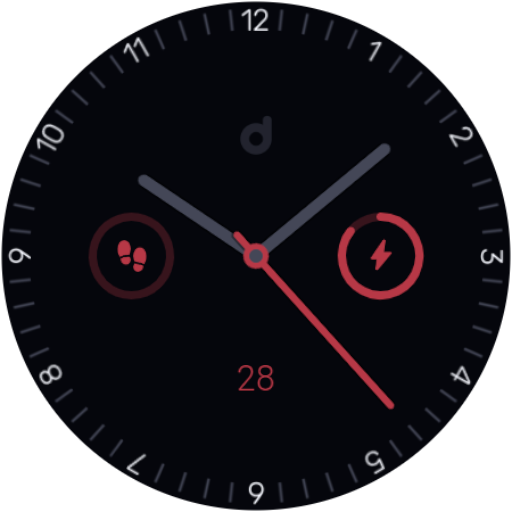
DS A002 - Analog watch face
Free

DS
Free
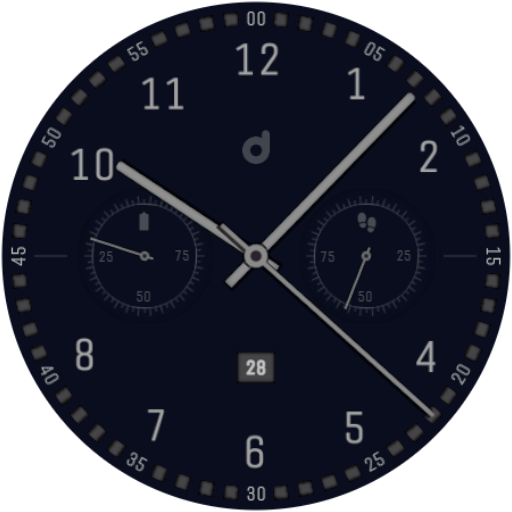
DS A004 - Analog watch face
Free
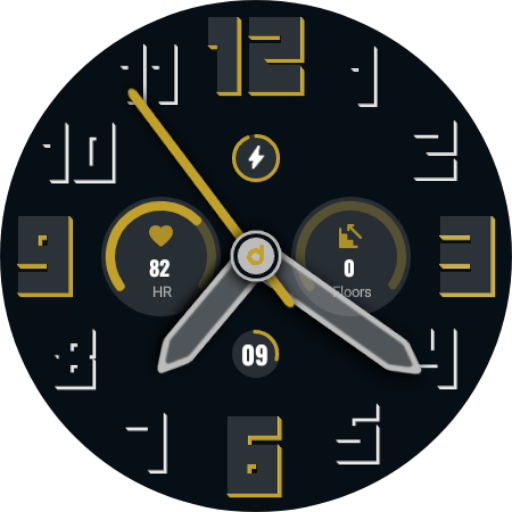
DS A006 - Analog watch face
Free
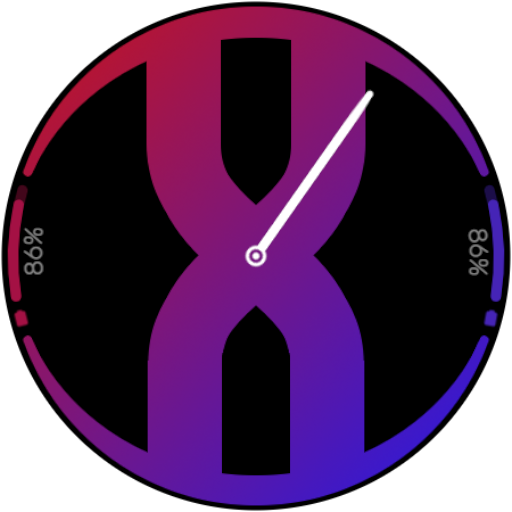
DS A007 - Customizable
Free
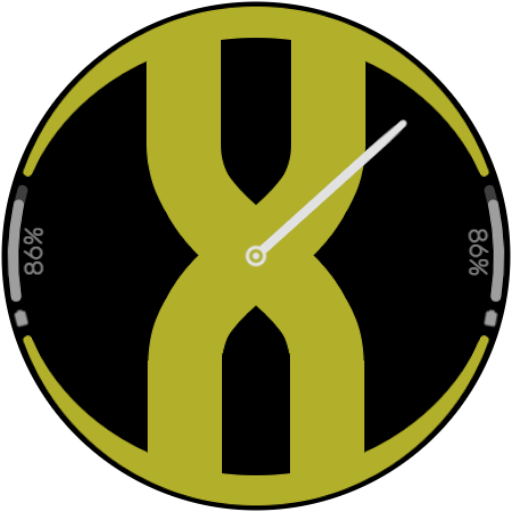
DS A007 - Flat (Random)
Free
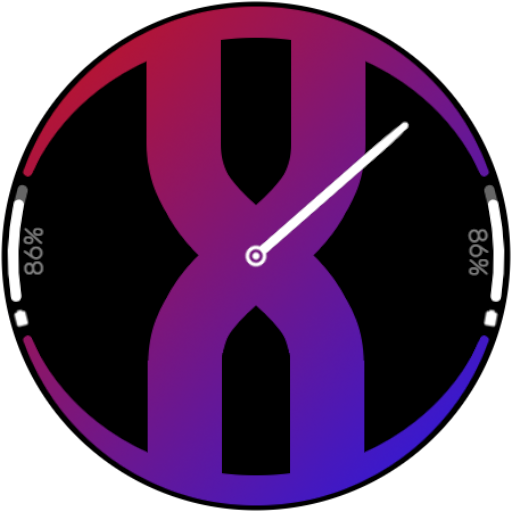
DS A007 - Gradient (Random)
Free

DS A008
Free

DS A008+
Paid
Similar Apps





Scan this QR code to download

Forwarding you to the page at Google Play market in seconds...
Open Google Play market now